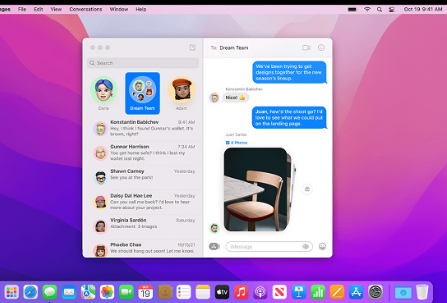
It’s really frustrating when your text messages stop working. You hit send, but that blue bubble just sits there with a red exclamation mark. It feels like you’re cut off from everyone you care about.
Apple’s messaging service connects millions of users every day. When iMessage Not Working issues happen, it can mess up your communication. These problems can pop up out of nowhere and vary from simple to complex.
The good news is, most messaging problems have straightforward solutions. Our step-by-step guide helps you fix common issues. Whether it’s failed messages, activation errors, or sync problems, we’ve got you covered. We’ll show you how to get your messages flowing again.
Key Takeaways
- Most messaging issues stem from network connectivity or account activation problems
- Simple restart and settings adjustments resolve 70% of common messaging failures
- Apple ID and phone number verification are critical for proper message delivery
- Cross-device sync problems often require signing out and back into your Apple account
- Network settings reset can eliminate stubborn connectivity issues
- Carrier settings updates may be needed for SMS/MMS fallback functionality
Common iMessage Issues on Apple Devices
When iMessage stops working, several common culprits are usually to blame. These problems can affect your iPhone, iPad, or Mac at any time. Knowing what causes these iMessage issues helps you fix them faster and get back to messaging your friends and family.
Most messaging problems fall into specific categories. Each type has its own warning signs and solutions. Let’s explore the main reasons why your Apple devices might struggle with iMessage delivery.
| Problem Type | Common Symptoms | Typical Causes | Quick Identification |
| Activation Failures | Red exclamation marks, “Not Delivered” messages | Account authentication, carrier restrictions | Messages appear as green text instead of blue |
| Connection Errors | Delayed sending, failed message delivery | Weak Wi-Fi, cellular data problems | Loading indicators that never complete |
| Sync Problems | Messages missing across devices | Apple ID conflicts, settings mismatches | Different conversation history on each device |
| Software Conflicts | App crashes, slow performance | Outdated iOS, corrupted cache files | Frequent app restarts or freezing |
Why iMessage Might Not Be Working
Several factors can prevent iMessage from functioning correctly on your Apple devices. Server-side issues at Apple occasionally cause widespread outages. These problems affect millions of users simultaneously and require patience while Apple fixes their systems.
Account authentication problems represent another major cause of iMessage not activating. Your device needs to verify your Apple ID and phone number with Apple’s servers. When this process fails, your messages won’t send through the iMessage network.
Device-specific glitches also create messaging problems. Corrupted settings files, outdated software, or conflicting apps can interfere with normal iMessage operation. These issues typically affect individual devices rather than all your Apple products.
Network Connection Problems
Network connectivity directly impacts how well iMessage works on your devices. Even when your internet connection seems fine, messaging services require specific network conditions to function properly.
Wi-Fi networks with strict security settings sometimes block iMessage traffic. Corporate networks, school systems, and public hotspots often restrict messaging services for security reasons. Your device might show a strong Wi-Fi signal while iMessage fails to connect.
Cellular data issues create similar problems for iPhone users. Weak signal strength, network congestion, or carrier restrictions can prevent iMessage activation. Some cellular plans limit messaging services or require specific settings to enable iMessage functionality.
“Network-related iMessage problems often appear as connection timeouts or activation failures, even when other internet services work normally.”
Software Update Notifications
Pending software updates frequently interfere with iMessage functionality across all Apple devices. Apple regularly releases messaging-related fixes through iOS, iPadOS, and macOS updates.
Your device might display connection errors when important system updates remain uninstalled. These updates often include security patches, bug fixes, and improvements designed to resolve iMessage issues. Delaying updates can leave your messaging service vulnerable to known problems.
Update notifications serve as early warning signs for potential messaging problems. When Apple releases updates containing iMessage fixes, installing them quickly prevents many common issues from occurring. Automatic updates help ensure your devices always have the latest messaging improvements.
Check Your Internet Connection
When iMessage not sending is a problem, your internet connection is often the key. A stable internet connection is crucial for iMessage to work on your Apple devices. Without it, your messages can’t reach Apple’s servers or your friends.
Most messaging problems come from basic connection issues, not complex software bugs. Your device needs a steady internet connection to send messages. Always check your connection first when you have trouble.
Wi-Fi Connection Issues
Wi-Fi problems often cause iMessage not sending errors. Check your Wi-Fi signal in your device’s status bar. A weak signal shows as one or two bars, which can cause delivery issues.
Try moving closer to your router to see if it helps. If messages send well near the router, you might need to move it or get a Wi-Fi extender. Poor router placement or interference can also affect message delivery.
Public Wi-Fi networks can be tricky for iMessage users. Hotels, cafes, and airports might block messaging protocols for security. This can stop your messages from reaching Apple’s servers.
To test your Wi-Fi connection, try these steps:
- Open Safari and visit a website to confirm internet access
- Check if other apps requiring internet connection work properly
- Restart your router by unplugging it for 30 seconds
- Forget and reconnect to your Wi-Fi network in Settings
Router configuration issues can also block iMessage traffic. Some routers have firewalls that interfere with Apple’s messaging. If you think this is the case, contact your internet service provider.
Using Cellular Data
Cellular data is a good backup when Wi-Fi doesn’t work. Most iPhones and iPads can switch between Wi-Fi and cellular for iMessage. This ensures messages keep going even with unstable Wi-Fi.
To use cellular data for iMessage, go to Settings > Messages. Make sure “Send as SMS” is on. This lets your device use cellular data when Wi-Fi is not available. Your messages will still look like blue iMessages when sent over cellular.
Watch your data usage while fixing connection problems. iMessage uses little data, but photos and videos can use a lot. Check your data usage in Settings > Cellular to keep track.
Some carriers limit messaging during busy times. This can cause delays even with strong signals. Try airplane mode for 30 seconds, then turn it off to refresh your connection.
If Wi-Fi and cellular data don’t solve your problem, the issue might be in your device settings. A stable internet connection clears up connectivity issues. This lets you look for other solutions.
Update Your Device Software
Keeping your Apple devices updated is key for smooth iMessage use. Outdated software is a common cause of iMessage issues. Apple updates fix bugs, improve security, and boost compatibility between devices.
Software updates often include fixes for messaging problems. They also help your device talk better with other Apple devices.
Before updating, back up your important data. This keeps your messages, photos, and files safe during the update.
iOS Updates for Better Performance
Updating your iPhone or iPad is easy but needs some prep. Free up storage space first since updates can be big.
Here’s how to update iMessage on iPhone and iPad:
- Connect to a stable Wi-Fi network
- Plug your device into a power source
- Go to Settings > General > Software Update
- Tap Download and Install if an update is available
- Enter your passcode when prompted
- Tap Install Now to start the update
The update takes 15-30 minutes. Your device will restart a few times. Don’t interrupt this process or turn off your device.
If the update fails or gets stuck, try these solutions:
- Force restart your device by holding the power and home buttons
- Check your internet connection strength
- Delete unused apps to free up more storage space
- Try updating through iTunes or Finder on your computer
macOS Updates for Mac Users
Mac computers also need regular updates for iMessage to work right. macOS updates are crucial for messaging compatibility.
Update your Mac with these steps:
- Click the Apple menu in the top-left corner
- Select System Preferences or System Settings
- Choose Software Update
- Click Update Now if updates are available
- Enter your administrator password when asked
- Let the update download and install automatically
Mac updates take longer than mobile updates. Plan for 30-60 minutes based on your internet speed and the update size.
Different software versions can cause iMessage sync problems. If your iMessage on iPad runs iOS 16 but your Mac is older, messages might not sync. Keep all devices updated to avoid these issues.
Security updates are smaller and install faster than full system updates. Install these right away since they often fix messaging security vulnerabilities that could affect iMessage performance.
Read more: What to Look for When Choosing a LinkedIn Marketing Service Provider
Verify iMessage Settings
Your iMessage settings are key to getting messages on all devices. If they’re off, you might face iMessage not receiving issues. Luckily, most problems have easy fixes once you know where to look.
Many people miss basic setup steps on new devices. This can lead to messages not showing up. Let’s look at the important settings for smooth messaging.
“The devil is in the details when it comes to iMessage configuration. One wrong setting can break the entire messaging experience across your Apple ecosystem.”
Enable iMessage Properly
First, ensure iMessage is turned on. This might seem simple, but it’s a common cause of iMessage not receiving problems.
On your iPhone or iPad, open the Settings app. Scroll down to “Messages” and tap it. Look for the iMessage toggle at the top. If it’s gray, tap it to turn it green.
Activation might take a few minutes. You’ll see “Waiting for activation” under the toggle. Be patient. If it fails after several minutes, try turning iMessage off and back on again.
For Mac users, open the Messages app. Go to Messages > Preferences. Click the iMessage tab and sign in with your Apple ID if needed. Make sure the “Enable this account” box is checked.
Configure Send & Receive Addresses
Your Send & Receive settings decide who can message you. Wrong settings here can cause big delivery problems.
In the Messages settings on iPhone or iPad, tap “Send & Receive.” Your Apple ID is at the top, followed by a list of numbers and emails. Make sure your primary phone number has a checkmark next to it.
Add any email addresses you want for messaging. Tap “Add Email” and enter the address. Apple will send a verification email that you must confirm before the address becomes active.
Look at the “Start new conversations from” setting. This decides which number or email appears when you send messages. Choose your phone number for most situations, as it’s what most people expect to see.
On Mac, these options are in Messages Preferences under the iMessage tab. Make sure all devices use the same Apple ID and have the same addresses selected. Mismatched settings can cause messages to go to the wrong device or not arrive at all.
If you’re still having problems, sign out of your Apple ID completely and sign back in. This refreshes your account connection and often solves stubborn activation issues.
Sign Out and Back into iMessage
At times, your Apple ID connection might need a refresh to fix iMessage issues. Problems like authentication can stop messages from sending or receiving. Signing out and back in often solves these problems.
This action updates your account details and reconnects your device to Apple’s servers. You might see messages not syncing or your phone number missing in iMessage settings.
Apple suggests signing out of iMessage to fix ongoing connection issues.
Signing out varies between iOS devices and Macs. Each has its own steps to keep your data safe.
Steps for iPhone and iPad
On your iPhone or iPad, you can sign out of iMessage without affecting other Apple services. Open the Settings app and find Messages at the bottom.
Tap Send & Receive at the top of Messages settings. Your Apple ID will be at the bottom. Tap it and choose Sign Out from the menu.
Wait 30 seconds before signing back in. This pause lets the system fully disconnect. Then, tap Use your Apple ID for iMessage and enter your details.
If issues continue, you might need to sign out of your Apple ID completely. Go to Settings > [Your Name] and scroll down. Tap Sign Out and follow the instructions to avoid losing data.
Mac Sign-Out Process
For iMessage on Mac, use the Messages app. Open the Messages app and click Messages in the menu bar, then select Preferences.
Click the iMessage tab and find the Sign Out button next to your Apple ID. Click it and confirm when asked.
After signing out, close the Messages app and wait a minute before opening it again. When you open Messages, click Sign In and enter your Apple ID.
| Device Type | Sign-Out Location | Wait Time | Additional Notes |
| iPhone/iPad | Settings > Messages > Send & Receive | 30 seconds | Can sign out of just iMessage |
| Mac | Messages > Preferences > iMessage | 1 minute | Close app completely before signing back in |
| System-wide | Settings > [Your Name] (iOS) or System Preferences > Apple ID (Mac) | 2-3 minutes | Use only if iMessage-only sign-out fails |
The re-authentication process takes a few minutes. Your device verifies your details with Apple’s servers and restores your messages. Be patient during this process as rushing can cause more problems.
Reset Network Settings
If simple fixes don’t fix iMessage problems, try a network settings reset. This method clears all network settings on your device. It removes Wi-Fi passwords, cellular settings, and VPN configurations.
Think of it as a fresh start for your device’s network connections. Many issues come from bad network files or conflicting settings. A reset fixes these problems.
Understanding Network Reset
A network reset changes several important areas on your device. Your iPhone or iPad will forget all Wi-Fi networks and their passwords. Cellular data settings and VPN configurations will also reset to default.
Bluetooth pairings with accessories will also be forgotten. Your device will forget connected headphones, keyboards, and other devices. Network preferences will reset to their factory settings.
Important: This process doesn’t delete your photos, apps, or personal data. It only changes network and connectivity settings. You’ll need to reconnect to Wi-Fi networks after the reset.
| Setting Type | What Gets Reset | What You’ll Need to Redo |
| Wi-Fi Networks | All saved networks and passwords | Reconnect and enter passwords |
| Cellular Settings | APN settings and data preferences | Usually auto-configures |
| VPN Configurations | All VPN profiles and settings | Re-enter VPN details |
| Bluetooth Devices | All paired accessories | Re-pair each device |
Steps to Reset Network Settings on iOS
Before starting the network settings reset, write down your Wi-Fi passwords. Also, note any VPN settings you use regularly. This saves time later.
Open the Settings app on your iPhone or iPad. Scroll down and tap “General” from the main menu. Look for “Transfer or Reset iPhone” at the bottom of the General settings.
Tap “Reset” to see the reset options. Select “Reset Network Settings” from the choices. Your device will ask for your passcode to confirm.
Enter your device passcode when prompted. A final warning appears asking you to confirm the reset. Tap “Reset Network Settings” again to proceed.
Your device restarts automatically after the reset. The process takes about two minutes. Once your device boots up, reconnect to your Wi-Fi network.
Network settings reset is effective for iMessage issues caused by carrier updates, iOS upgrades, or profile installations that modify network behavior.
Test your iMessage functionality after reconnecting to Wi-Fi. Many users find their messaging problems resolve completely after this connectivity troubleshooting method. If iMessage still doesn’t work, the issue likely requires different solutions.
Disable and Re-enable iMessage
When iMessage stops working, a simple toggle can fix it. This method refreshes your connection to Apple’s servers. It also clears any temporary glitches that might be blocking your messages.
The iMessage toggle gives your messaging service a fresh start. It’s like restarting your computer when it’s slow. This often solves problems without needing more complex fixes.
Quick Steps to Toggle iMessage
The steps to toggle iMessage are similar across all Apple devices. Here’s how to do it on each type of device.
For iPhone and iPad users, start by opening the Settings app. Go to Messages and find the iMessage toggle switch. Turn it off, wait 30 seconds, then turn it back on.
Mac users should open the Messages app and go to Preferences. Click on the iMessage tab and sign out completely. Wait 30 seconds, then sign back in with your Apple ID.
| Device Type | Navigation Path | Toggle Location | Wait Time |
| iPhone/iPad | Settings → Messages | iMessage switch | 30 seconds |
| Mac | Messages → Preferences | iMessage tab → Sign Out | 30 seconds |
| Apple Watch | Watch app → Messages | Mirror iPhone setting | Automatic sync |
| iPad (Cellular) | Settings → Messages | Send & Receive options | 30 seconds |
Why Toggling Helps
The iMessage toggle forces your device to reconnect with Apple’s servers. When you disable iMessage, your device disconnects completely.
During this brief disconnection, temporary cache files get cleared. These files sometimes cause messaging problems. The 30-second wait lets the system fully process the disconnection.
When you re-enable iMessage, your device must re-authenticate with Apple’s servers. This creates fresh security certificates and new communication pathways. Often, this resolves messaging issues completely.
You’ll know the messaging service restart worked when you see “Waiting for activation” briefly. This means your device is reconnecting to iMessage servers. Most activations happen within 24 hours, but many are much faster.
Check Apple System Status
Before you spend hours trying to fix your device, check if Apple’s iMessage service is down. Apple system status issues can hit millions of users at once. If servers fail, no device fix can bring back your messages.
Apple has a public status page that shows service updates in real-time. This includes iMessage, FaceTime, App Store, and iCloud. The page updates automatically when problems happen.
“When Apple’s servers experience issues, it affects users globally, not just individual devices.”
Accessing Apple’s System Status Page
Finding Apple’s official system status page is quick. Just open your web browser and go to support.apple.com/system-status. You can do this from any device with internet.
The status page shows all Apple services in a simple format. Green indicators mean everything is working fine. Yellow or red indicators show problems or outages.
Look for iMessage in the list of services. The page shows three status indicators:
- Green circle: Service operating normally
- Yellow triangle: Some users experiencing issues
- Red diamond: Service unavailable or major outage
Each service entry includes timestamps for when issues started. Apple also gives brief descriptions of ongoing problems. This helps you see if your area or device type is affected.
What to Do If iMessage is Down
If Apple confirms iMessage server issues on their status page, your approach should change. Don’t waste time resetting your device or changing settings during confirmed outages.
Consider these temporary alternatives while waiting for Apple to fix the problem:
- Send regular SMS text messages instead of iMessages
- Use other messaging apps like WhatsApp or Telegram
- Make phone calls for urgent communications
Keep an eye on the Apple system status page for updates. Apple usually fixes server problems within a few hours. The status page will show green indicators when service returns to normal.
If the status page shows green for iMessage but you still can’t send messages, then the problem likely lies with your device or settings. In this case, continue with other troubleshooting steps from previous sections.
Remember, widespread outages affect everyone, not just you. Social media platforms often buzz with complaints during major Apple service disruptions. This can provide additional confirmation that the problem isn’t device-specific.
Contact Apple Support
Sometimes, iMessage problems need more than just basic fixes. If you’ve tried everything and still face issues, it’s time to get professional help.
When to Reach Out for Help
If iMessage still doesn’t work after trying all fixes, it’s time to call Apple Support. Issues like constant error messages or complete service failures need expert help. Don’t wait too long hoping it fixes itself.
Before you call, write down all your troubleshooting steps. Note any error codes, when the problems happened, and what you’ve tried. This helps Apple’s support team solve your issue quicker.
How to Get Support Effectively
Apple Support has several ways to get in touch. You can start a chat, schedule a call, or visit your local Apple Store. Phone support is great for urgent problems, while in-store visits are better for complex hardware issues.
Have your device serial number and Apple ID ready when you call. Keep your iPhone, iPad, or Mac close during the call. Support reps might ask to access your device or run tests.
Be clear and patient when explaining your iMessage issues. Good communication helps solve problems faster and keeps your Apple devices working well.
FAQ
Why is my iMessage not working on my iPhone?
iMessage issues on iPhone can stem from several causes. These include a weak internet connection, outdated iOS, wrong iMessage settings, or Apple server problems. First, check your Wi-Fi or cellular connection. Then, make sure iMessage is turned on in Settings > Messages.
If problems continue, update your iOS software. Or, try signing out and back into your Apple ID.
How do I fix iMessage not sending messages?
For iMessage not sending, first ensure a stable internet connection. Go to Settings > Messages and toggle iMessage off. Wait 30 seconds, then turn it back on.Also, check that your recipient’s contact info is correct. Make sure they have iMessage enabled on their device.
What should I do if I’m not receiving iMessages?
For iMessage not receiving, check your Send & Receive settings. Ensure your phone number and email addresses are correct. Activate iMessage and use the same Apple ID on all devices.Sometimes, signing out and back into iMessage can fix sync issues.
Why won’t iMessage activate on my device?
iMessage activation issues often relate to network or Apple ID problems. Ensure a stable internet connection. Verify your Apple ID credentials are correct.Check for any pending iOS updates. If activation fails, try resetting your network settings or contact your carrier.
Can I use iMessage without Wi-Fi?
Yes, iMessage works with cellular data when Wi-Fi is not available. Make sure cellular data is enabled for Messages in Settings > Cellular. Keep in mind that sending media uses more data than text messages.
How do I know if Apple’s iMessage servers are down?
Check Apple’s System Status page at apple.com/support/systemstatus for iMessage issues. If Apple shows problems, wait for them to fix the server issues.
Why do my iMessages show as green instead of blue?
Green iMessages are sent as SMS, not through iMessage. This happens when iMessage isn’t working, the recipient doesn’t have iMessage, or there’s no internet. Blue messages mean iMessage delivery was successful.
How do I sync iMessage across my iPhone, iPad, and Mac?
To sync iMessage, ensure all devices are signed into the same Apple ID. Enable iMessage on all devices. In iMessage settings, select the same phone number and email addresses for Send & Receive.Enable “Messages in iCloud” for seamless syncing across devices.
What does resetting network settings do to fix iMessage?
Resetting network settings removes Wi-Fi passwords, cellular settings, and VPNs. It can fix deep connectivity issues with iMessage. This step is effective when basic fixes don’t work. After resetting, reconnect to Wi-Fi and reconfigure custom settings.
When should I contact Apple Support for iMessage problems?
Contact Apple Support after trying basic fixes like checking internet, updating software, and resetting network settings. Also, reach out for hardware issues or if Apple’s System Status shows no problems but you still have issues.